
December 30, 2025 / IPTV
This instructional guide will show you how to install and use Smart IPTV (SIPTV) on Firestick, Fire TV, and Android TV/Google TV Box.
Smart IPTV is an IPTV Player that works with tons of services and devices for a fabulous live-streaming experience.
How to Install Smart IPTV on Firestick/Android TV/Google TV
Step 1: Setup Your Device for Installation
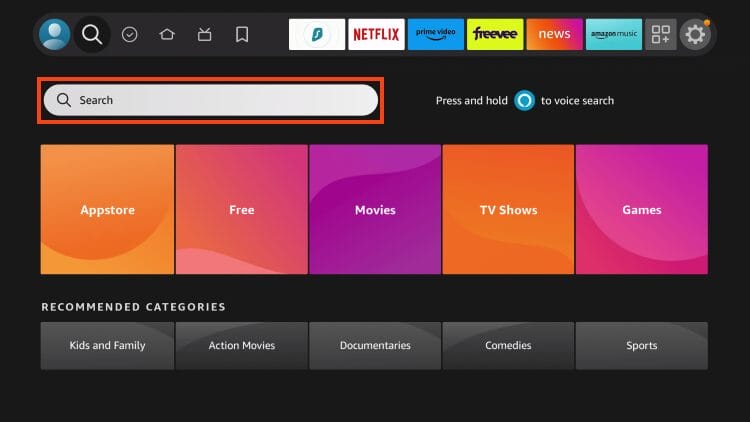
1. Locate the Search bar and select it.
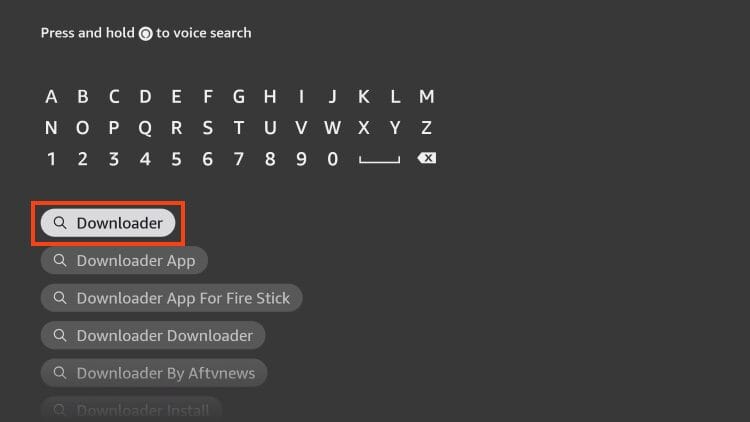
2. Type Downloader.
3. Select the Downloader by AFTVNews app.
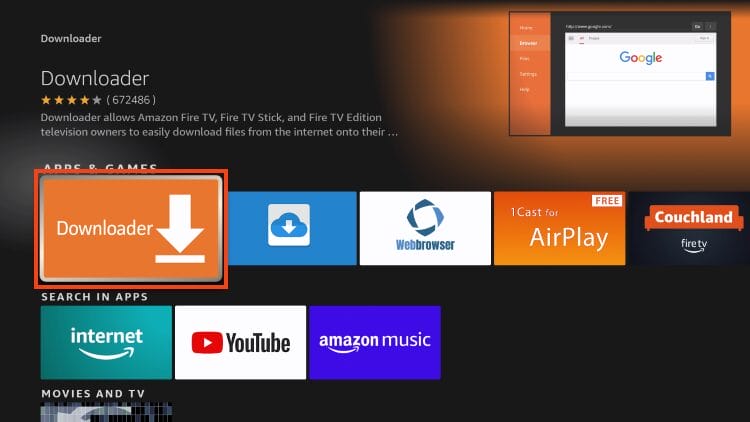
4. Click Download or Get.
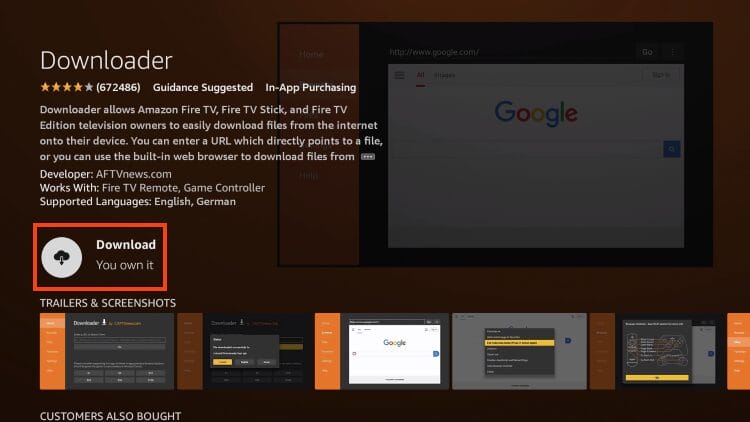
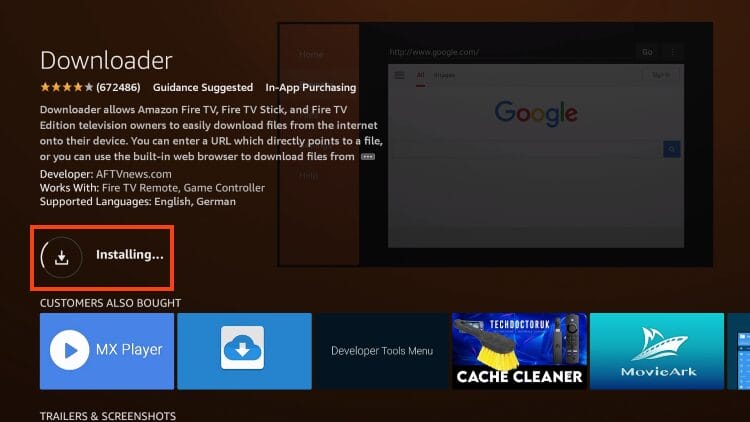
5. Wait for installation to complete.
Exclusive Surfshark Discount
Your online activity is currently monitored by your ISP, app/addon/IPTV developers, government agencies, and the websites you visit.
- Become 100% anonymous while streaming and downloading.
- Use on Unlimited Devices & share 1 account with the entire family.
- Save 85% with the 24-Month Plan + Get 3 FREE Months.
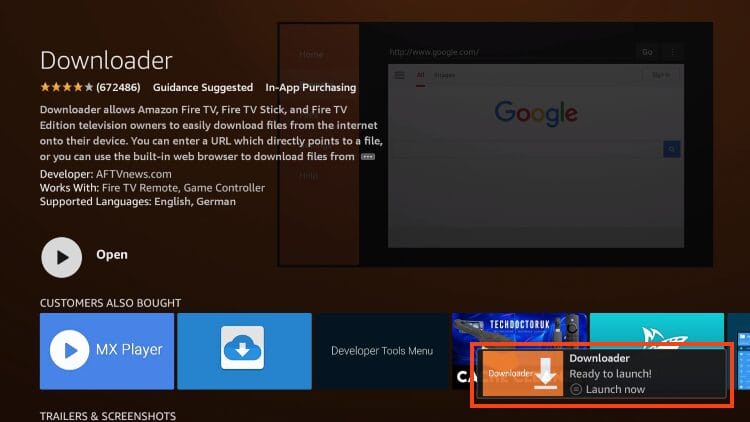
6. You will then see the Downloader Ready to launch! message.
7. Return to the home screen to hover over Settings and click My Fire TV.
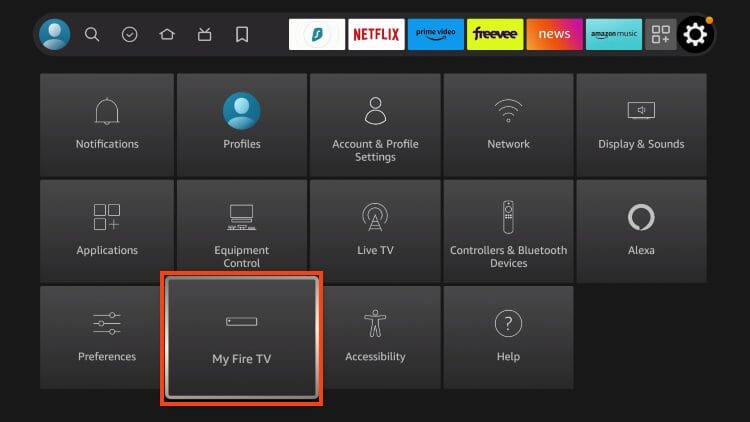
8. Choose Developer Options.
IMPORTANT: Please see the notes below if you don’t see Developer Options on your screen.
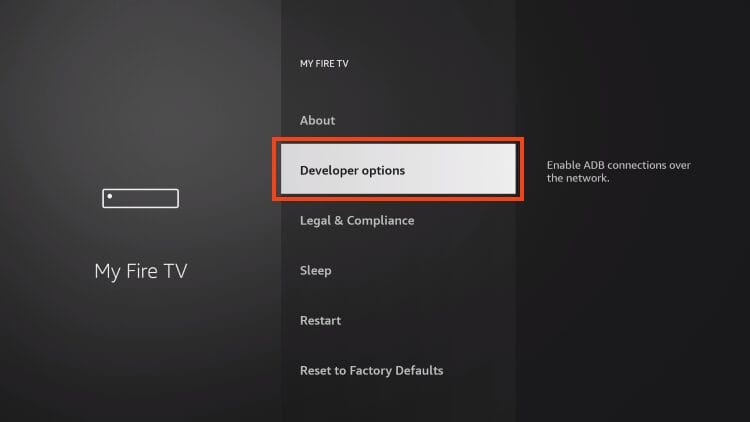
9. Click Install unknown apps.
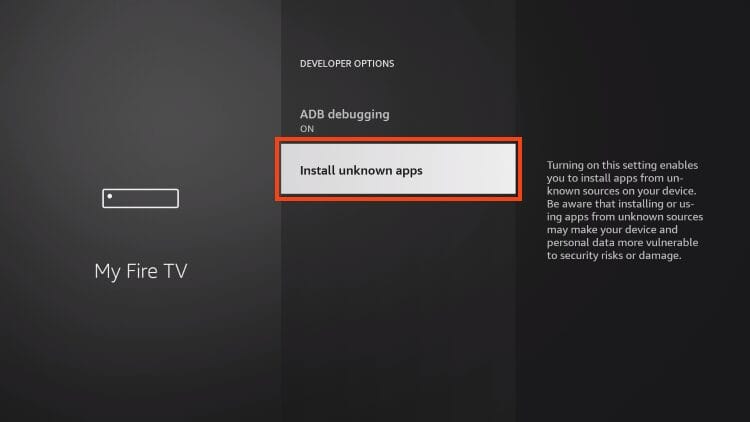
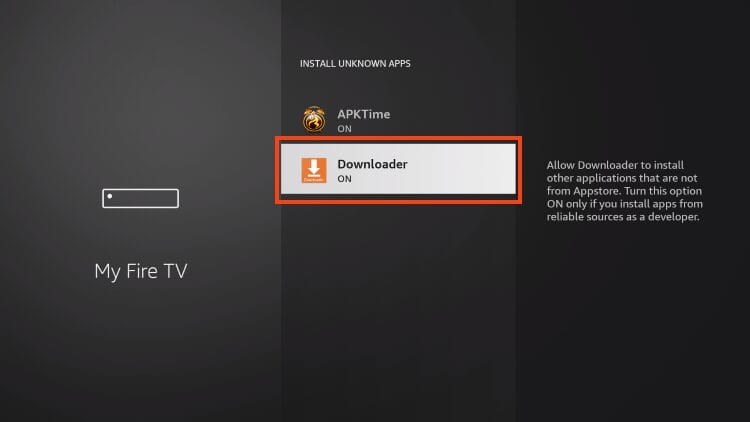
10. Find the Downloader app and choose it.
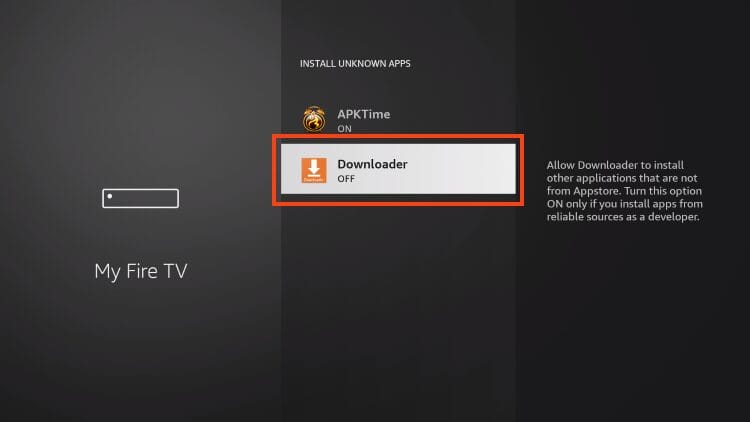
11. This will turn Unknown Sources to On for the Downloader app and allow you to install apps of your choice including SIPTV.
Developer Options Not Available
If you are unable to locate developer options within settings, follow the instructions below to enable this to use the Downloader App.
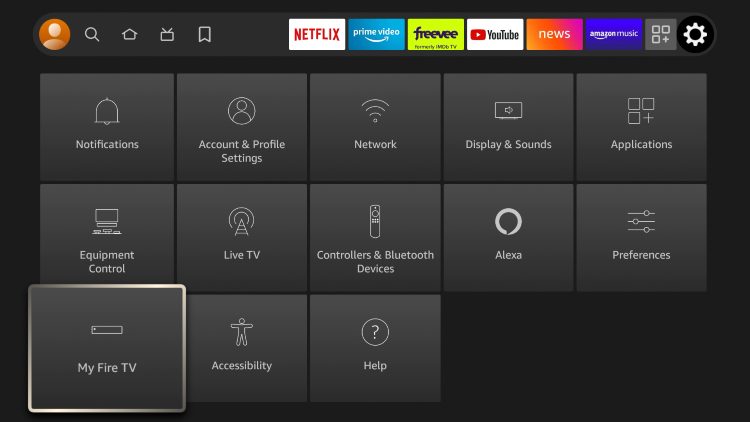
1. Hover over the Settings icon and click My Fire TV.
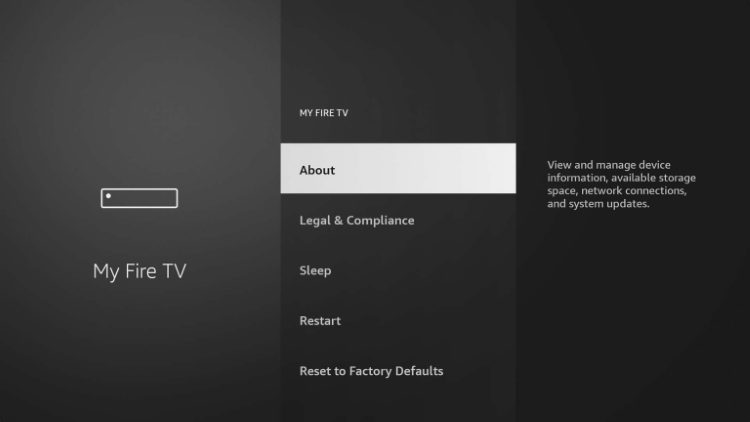
2. Click About.
Note: Notice Developer Options is missing.
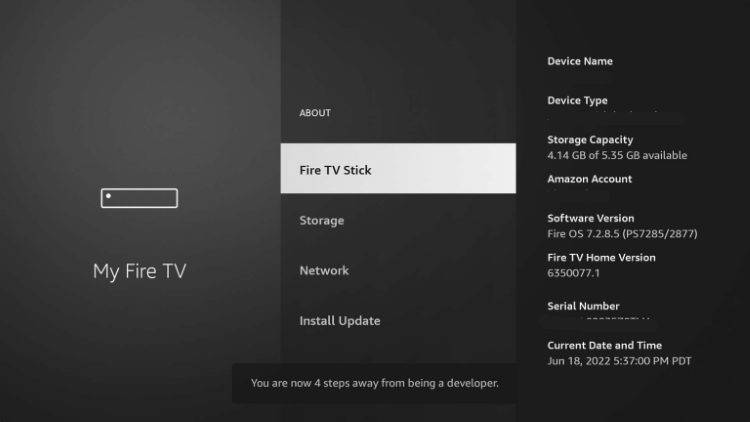
3. Hover over Fire TV Stick and click the OK button on your remote 7 times to become a developer.
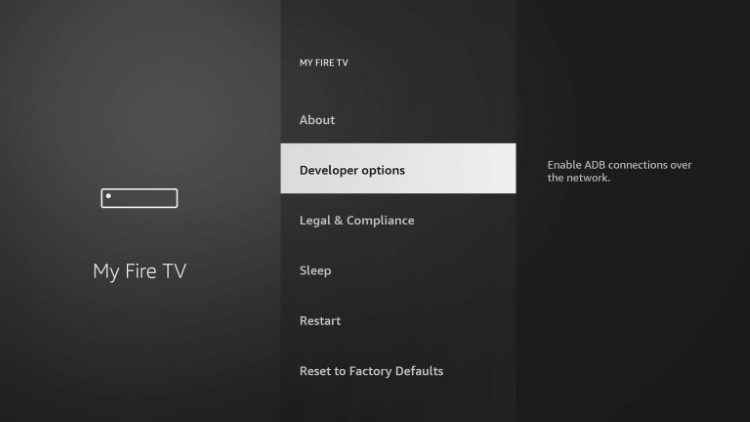
4. Click the back button on your remote and you will notice Developer Options is now showing within My Fire TV.
Step 2: Install Smart IPTV
1. Open the Downloader App.
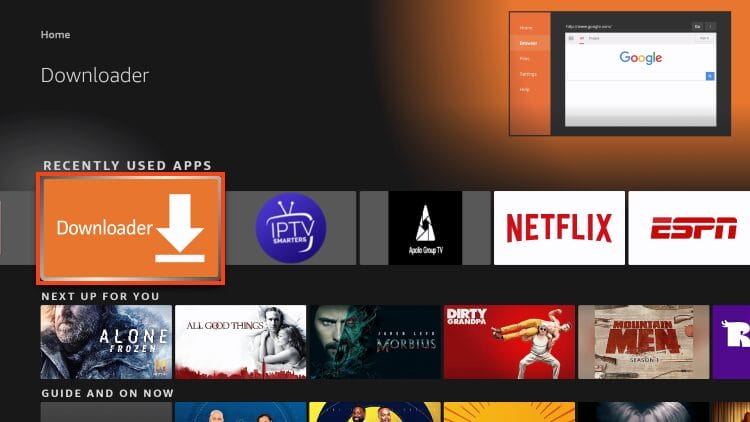
2. Hover over the URL bar and click the select button on your remote to open the Keyboard.
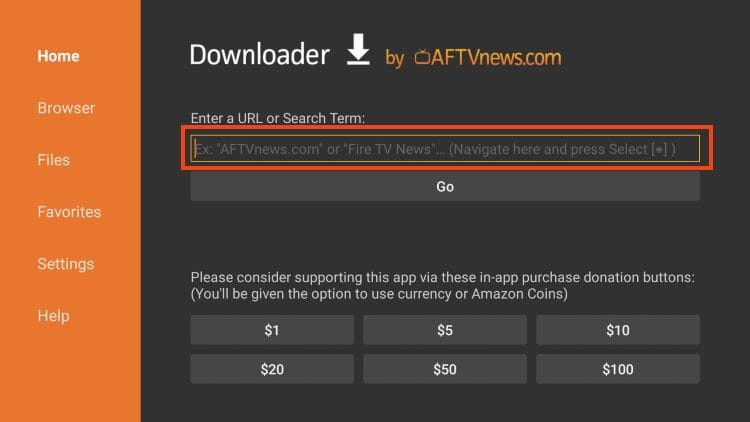
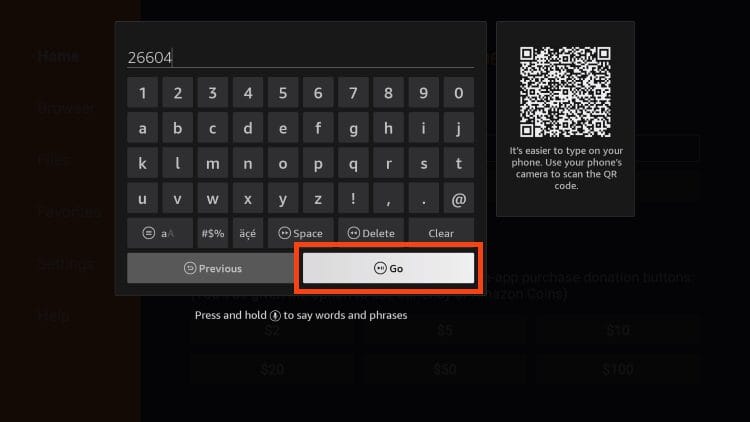
3. Type the Downloader Code for Smart IPTV which is 26604 and click OK.
4. You will now see a redirect page.
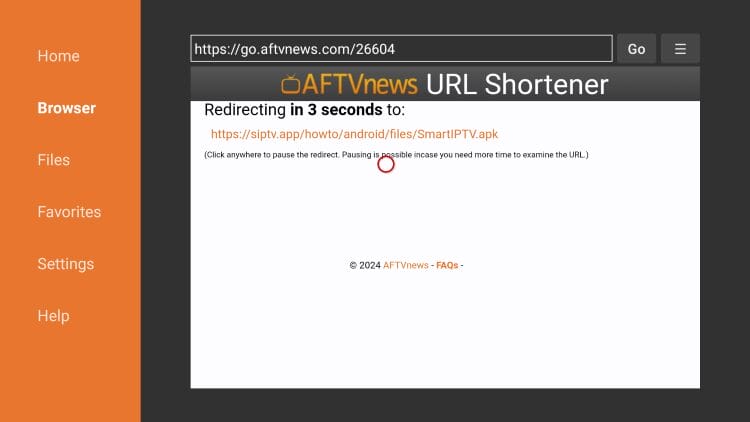
5. Click Install.
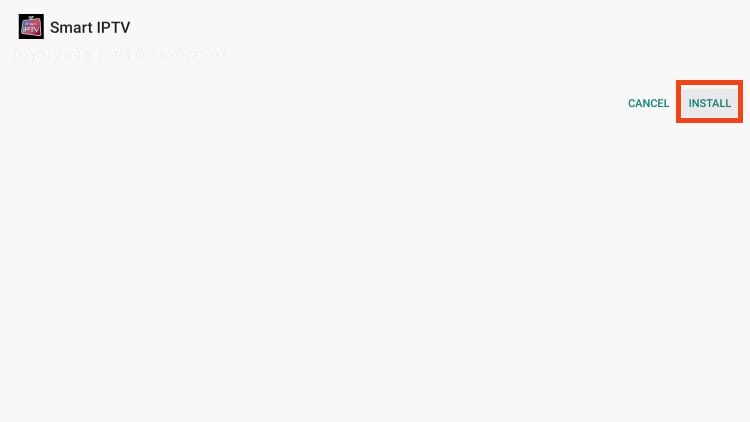
6. You will then see Smart IPTV installation message. Click Done.
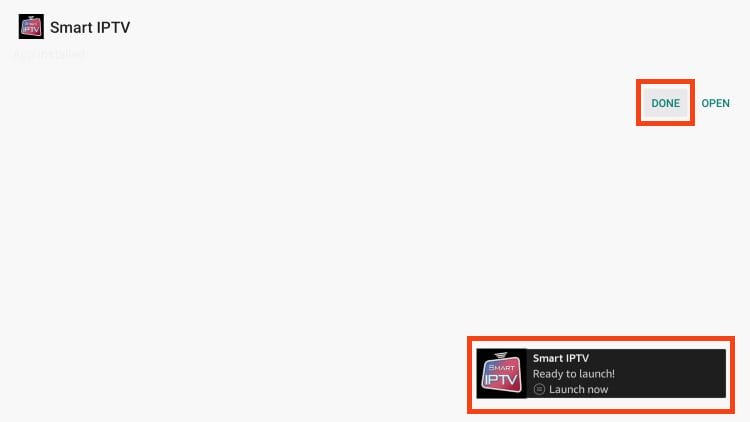
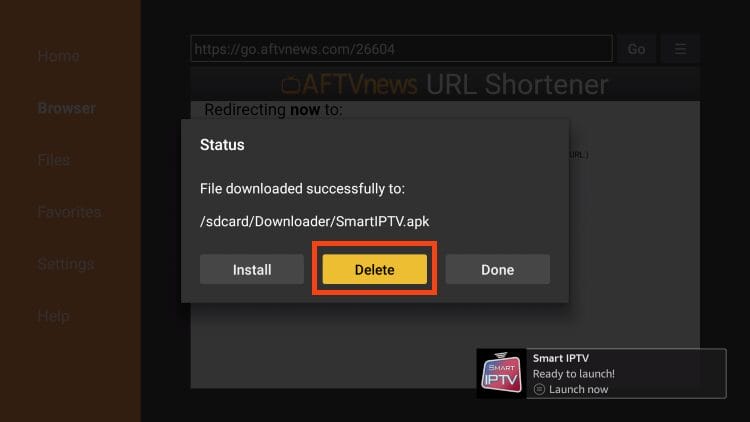
7. When prompted, click Delete.
8. Select Delete again.
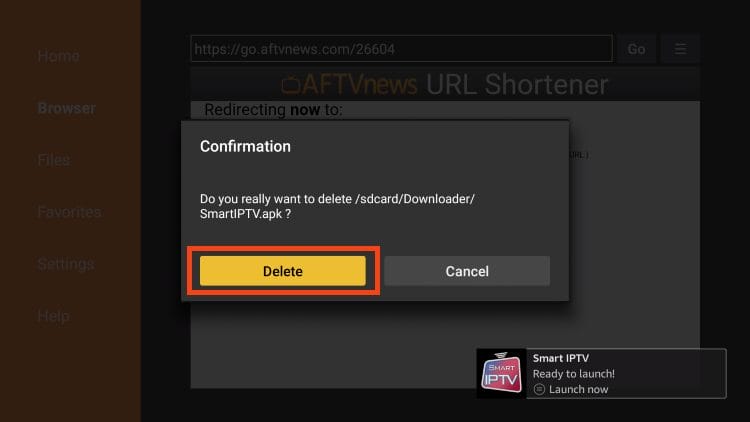
Installation of Smart IPTV is now complete.
Continue reading to learn how to set up Smart on your preferred device.
How to Set Up Smart IPTV
After installing Smart IPTV, you can launch the app to continue the setup process.
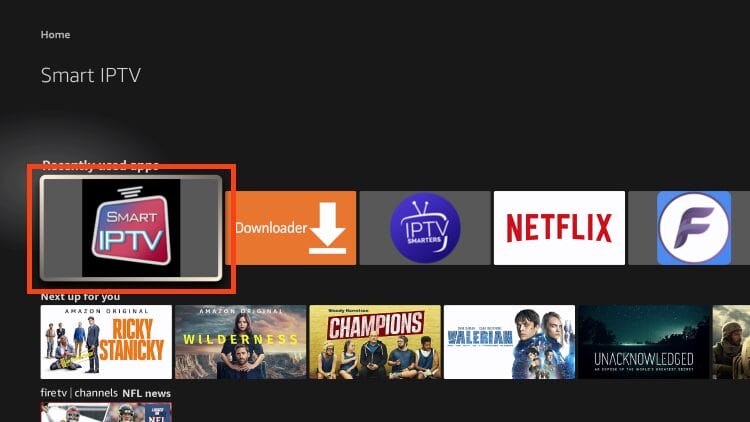
1. Launch Smart IPTV.
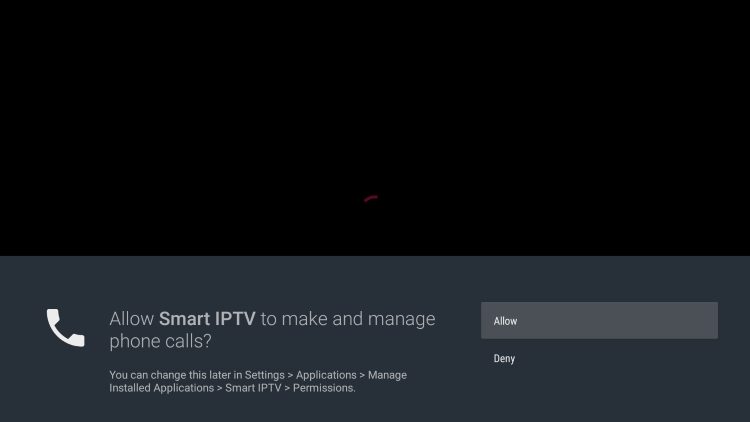
2. If you see the following message, click Allow.
3. You will then encounter the following screen:

4. Visit my.siptv.app on any browser and enter your M3U URL or other playlist link and device MAC shown above. Click Send.
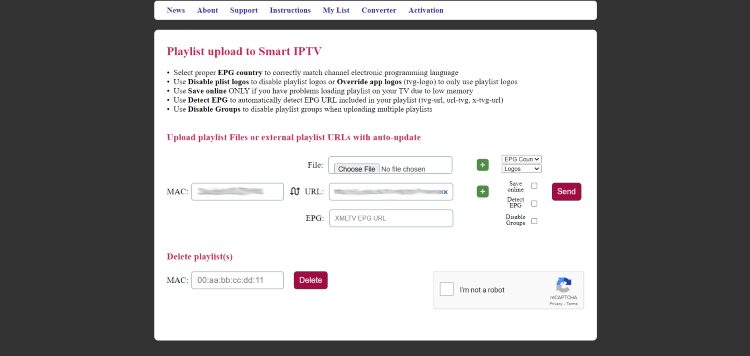
5. Return to the app and click Restart. Your playlist will upload for use.
That’s it!